
How to Add Sticker to Photo: A Complete Beginner’s Guide
Adding stickers to photos has become one of the most popular ways to personalize images for social media, messaging, online stores, and digital projects. Whether you want to decorate a selfie, create engaging product images, design marketing graphics, or make memorable photo albums, stickers can instantly enhance your pictures.
What Does It Mean to Add a Sticker to a Photo?
A photo sticker is a graphic element placed on top of an image. Stickers can include:
- Emojis
- Text graphics
- Decorative shapes
- Brand logos
- Product labels
- Seasonal designs
- Social media icons
People use stickers to make photos more visually appealing, communicate messages, or highlight important details.
For online sellers and content creators, stickers can also help attract attention and improve engagement.
Why People Add Stickers to Photos
Adding stickers has become common for both personal and business use.
Personal Uses
- Decorating vacation photos
- Creating fun social media posts
- Making birthday greetings
- Designing digital scrapbooks
Business Uses
- Promoting products
- Highlighting discounts
- Branding images
- Creating Pinterest graphics
- Improving online store visuals
Because stickers are easy to use, they have become a valuable tool for creators and marketers alike.
How to Add a Sticker to a Photo
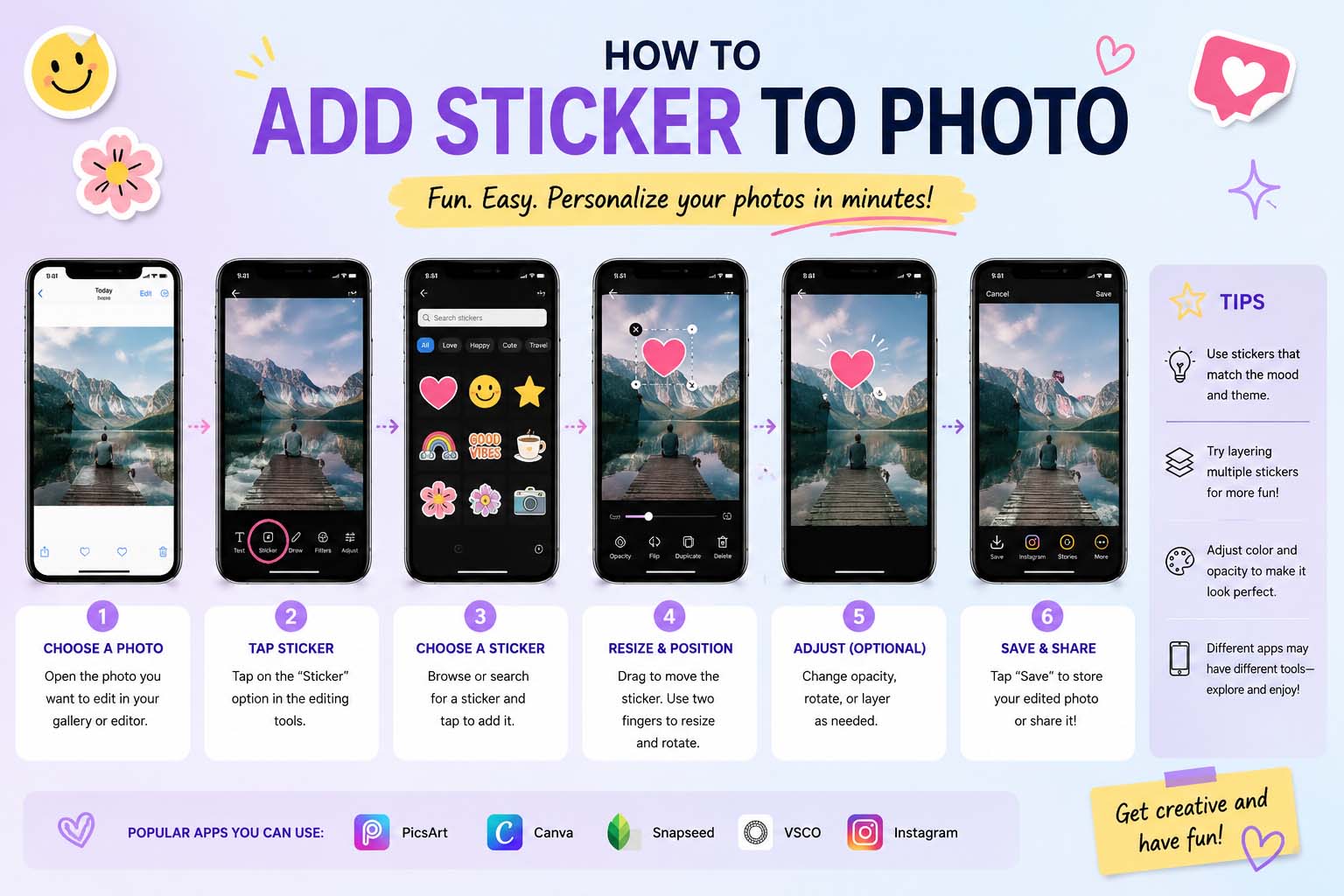
Most editing apps follow a similar process.
Choose an app such as:
- Canva
- PicsArt
- Adobe Express
- Snapseed
- PhotoDirector
Step 2: Upload Your Image
Select the photo you want to edit.
Step 3: Find the Sticker Option
Most apps have a menu labeled:
- Stickers
- Elements
- Graphics
- Decorations
Step 4: Choose a Sticker
Browse available categories and select a sticker that matches your design.
Step 5: Resize and Position
Move the sticker anywhere on the photo and adjust its size.
Step 6: Save the Edited Image
How to Add Sticker to Photo iPhone
Many iPhone users want to know how to add sticker to photo iPhone without downloading complex software.
Fortunately, iOS offers several easy methods.
Using the Photos App
Recent iPhone versions include built-in editing features that allow users to create and use stickers.
Using Messages Stickers
You can create stickers from image subjects and use them in supported apps.
Using Third-Party Apps
Popular choices include:
- Canva
- PicsArt
- Adobe Express
These apps provide larger sticker libraries and advanced editing options.
For users who regularly edit images, a dedicated app often provides more flexibility than built-in tools.
How to Add a Sticker to a Photo iPhone
If you’re wondering how to add a sticker to a photo iPhone, the process is straightforward.
Method
- Open a photo editing app.
- Select your image.
- Tap the sticker icon.
- Browse available stickers.
- Add the desired sticker.
- Resize and position it.
- Save the edited image.
Most iPhone-compatible editing apps use a similar workflow.
This method works well for social media posts, product photos, and personal projects.
How to Add a Sticker to a Photo on iPhone
Another common question is how to add a sticker to a photo on iPhone for professional-looking results.
To improve quality:
- Use high-resolution images.
- Avoid overcrowding the photo.
- Match sticker colors to the image.
- Position stickers where they don’t block important details.
- Use transparent PNG stickers when possible.
These simple adjustments create cleaner and more attractive designs.
Different apps offer different features.
Comparison Table
| App | Free Version | Sticker Library | Best For |
|---|---|---|---|
| Canva | Yes | Large | Social media graphics |
| PicsArt | Yes | Very Large | Creative editing |
| Adobe Express | Yes | Professional | Marketing designs |
| PhotoDirector | Yes | Extensive | Photo enhancements |
| Snapseed | Yes | Limited | Basic photo editing |
Each app offers unique advantages depending on your needs.
Shopping Guide: Choosing the Right Photo Editing App
When selecting an app for adding stickers, consider several factors.
Ease of Use
Beginners should look for intuitive interfaces and drag-and-drop editing.
Sticker Collection
Larger sticker libraries provide more creative options.
Export Quality
Choose apps that allow high-resolution image downloads.
Device Compatibility
Ensure the app works on your smartphone, tablet, or computer.
Pricing
Many apps offer free plans, while premium subscriptions unlock advanced features.
Choosing the right tool depends on your editing goals and budget.
Pros and Cons of Using Stickers on Photos
Before editing images, it’s important to understand both advantages and disadvantages.
Pros
- Enhances visual appeal
- Improves social media engagement
- Supports branding efforts
- Easy to use
- Adds creativity
Cons
- Overuse can clutter images
- Some premium stickers require subscriptions
- Excessive editing may appear unprofessional
Using stickers strategically typically produces the best results.
Tips for Professional Sticker Placement
Sticker placement can significantly affect image quality.
Keep the Main Subject Visible
Avoid covering faces, products, or important elements.
Use Consistent Design Styles
Matching sticker styles creates a cleaner appearance.
Limit the Number of Stickers
Too many graphics can distract viewers.
Maintain Visual Balance
Distribute stickers evenly throughout the design.
Match Colors
Choose sticker colors that complement the image.
Professional placement often makes the difference between an amateur and polished design.
Common Mistakes to Avoid
Many beginners make similar editing mistakes.
Overcrowding the Photo
Adding too many stickers reduces visual clarity.
Using Low-Quality Graphics
Blurry stickers can make images appear unprofessional.
Ignoring Branding
Businesses should use stickers that align with brand colors and style.
Blocking Important Details
Never place stickers over key subjects or product information.
Avoiding these issues improves the overall quality of your images.
Why Businesses Use Photo Stickers
Stickers aren’t just for personal photos.
Businesses frequently use them to:
- Highlight promotions
- Display sale percentages
- Announce new products
- Add branding elements
- Improve social media engagement
Well-designed stickers can help product photos stand out in crowded online marketplaces.
This makes them a useful tool for e-commerce sellers and digital marketers.
Frequently Asked Questions
Open a photo editing app, upload your image, select the sticker tool, choose a sticker, position it, and save the image.
How do I add a sticker to a photo on iPhone?
What is the best free app for adding stickers?
Canva and PicsArt are among the most popular free options because they offer extensive sticker libraries and beginner-friendly editing tools.
Can I add my own stickers?
Yes. Many editing apps allow users to upload custom PNG files and use them as stickers.
Do stickers reduce image quality?
Not usually. High-quality editing apps preserve image resolution when exporting files.
Conclusion
Learning how to add sticker to photo is a simple way to make images more engaging, creative, and visually appealing. Whether you’re creating social media content, enhancing personal pictures, or designing promotional graphics for an online store, stickers can help communicate messages and attract attention.